Solve the problem of failure to install .net framework 3.5 in Windows Server 2019 with error code 0x800f0950
Original link: https://www.itylq.com/solution-net-framework-35-for-windows-server.html
Release date: 2022-09-19 Migration time: 2026-03-21
Recently, I installed a new Windows Server 2019 system for testing. I found that when using the RDO remote tool, it was prompted that the .net framework 3.5 framework is required to run. Systems starting from Windows Server 2016 and later versions only have .net framework 4.5/4.7 installed by default, so you have to manually add the 3.5 framework.

It was originally a very simple operation. To add functions to the server, just check .net framework 3.5 to install it. Unfortunately, the installation failed after multiple attempts. Error code: 0x800f0950.
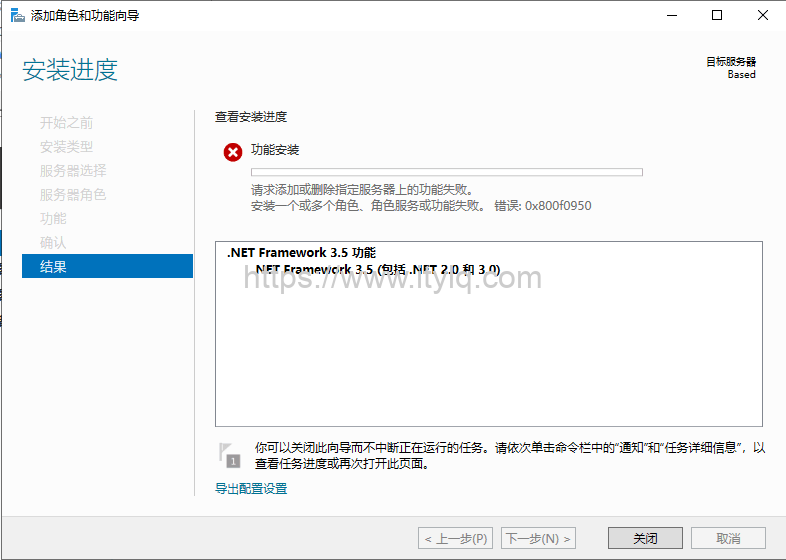
After checking the information, it seems that the problem is that the installation source is missing. Translated into vernacular, it means that there is no installation package of .net framework 3.5 in the C drive system disk, that is, when Windows Server 2019 is installed, there is no automatic copy of the installation package of .net framework 3.5 as a backup.
1 Preparation
-
Download a virtual optical drive loading software UltraISO;
-
Prepare the windows server 2019 installation package (iso format).
2 Installation
- Load the Windows system installation package to the virtual CD-ROM drive:
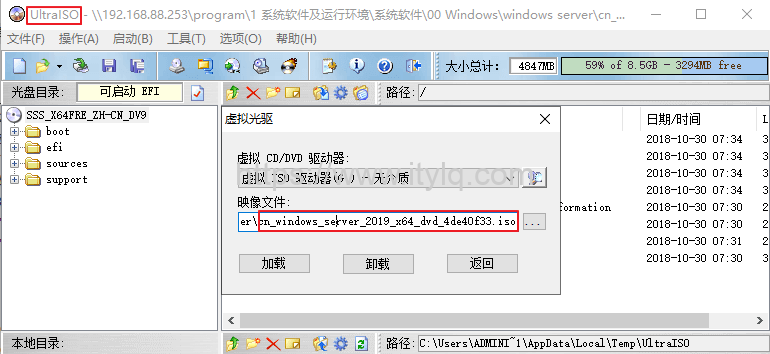
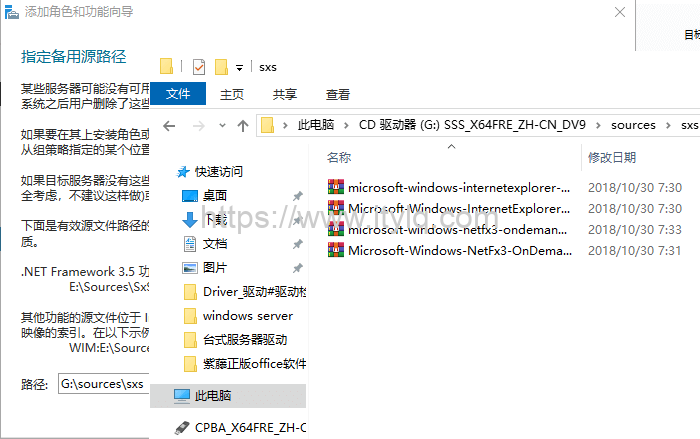
- Add the .net framework 3.5 function to the system, then manually select "Specify alternate source path", expand the system file directory loaded into the virtual CD-ROM drive, find the \sources\sxs folder, and copy the absolute path of the folder to the "Path" input box:
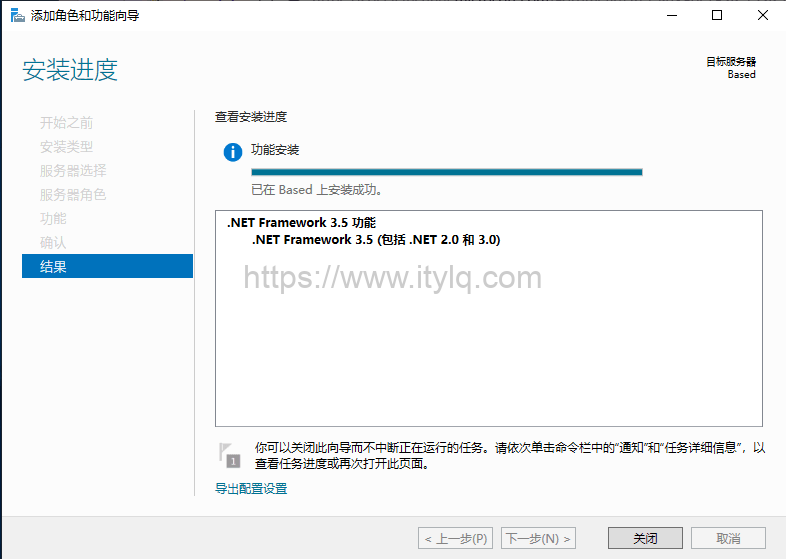
- Wait for the installation to complete.
This article was moved from WordPress to MkDocs