Qunhui NAS system uses FRP open source tools to achieve intranet penetration practice record (3)
Original link: https://www.itylq.com/frp-tech-in-synology-nas_3.html
Release date: 2022-09-17 Migration time: 2026-03-21
Through Practice record of Qunhui NAS system using FRP open source tools to achieve intranet penetration (2), the intranet Qunhui application penetration mapping is simply realized, and the external network can be accessed through http web pages. Now, I can’t help but wonder whether Qunhui’s PC desktop software (such as the synchronization software Cloud Station Drive) and Android mobile APP can also connect through FRP. The access speed of Qunhui’s own QuickConnect service is really unbearable...
1 PC desktop software Cloud Station Drive connects to the intranet Qunhui NAS application service through FRP
- Is it possible to directly use the mapped address drive.kkcdn.cn:90 to set it as the server address of Cloud Station Drive? The answer is no (the http web page can still be accessed normally~)...
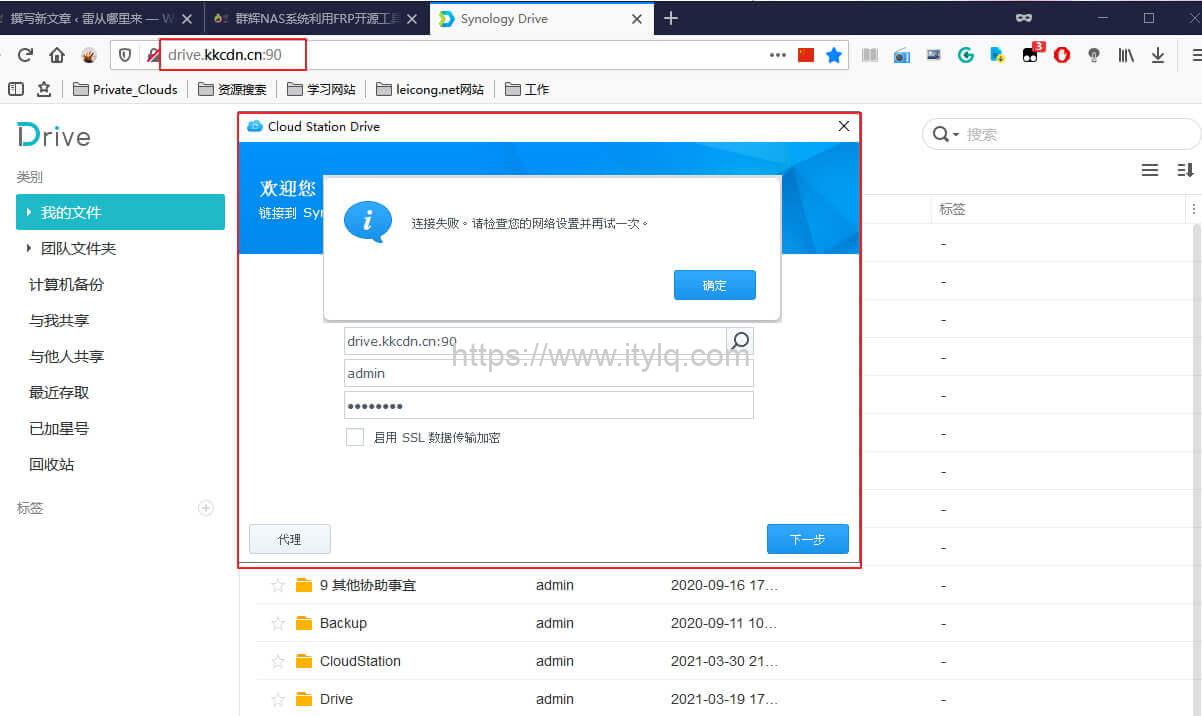
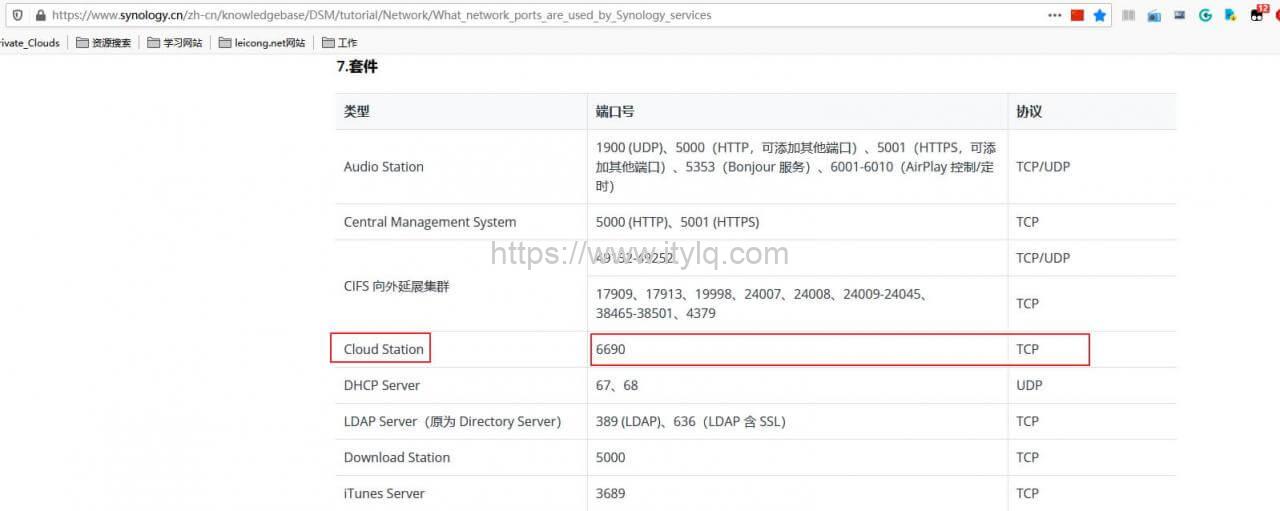
The preliminary conclusion that can be drawn now is that the data communication between the Cloud Station Drive software and the Qunhui NAS server is definitely not carried out through the http protocol. According to the OSI reference model, is it possible that the four-layer protocol TCP/UDP is directly used for transmission? After flipping through Synology's official documentation, I found such information, a table of port information corresponding to each application of Synology NAS (Portal: DSM Service Network Ports). Sure enough, the port used by the Cloud Station server is TCP:6690. Now it’s easy~
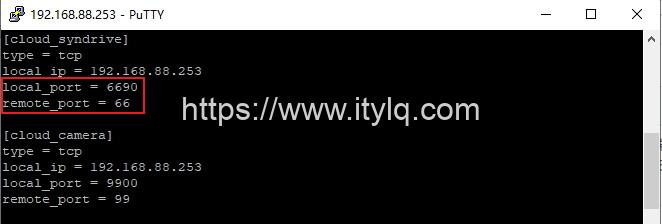
- On the Qunhui server, that is, the FRP Client, refer to the article "Practice Record (2)" to find the frpc.ini file. vi frpc.ini adds the local TCP:6690 port mapping according to the format:
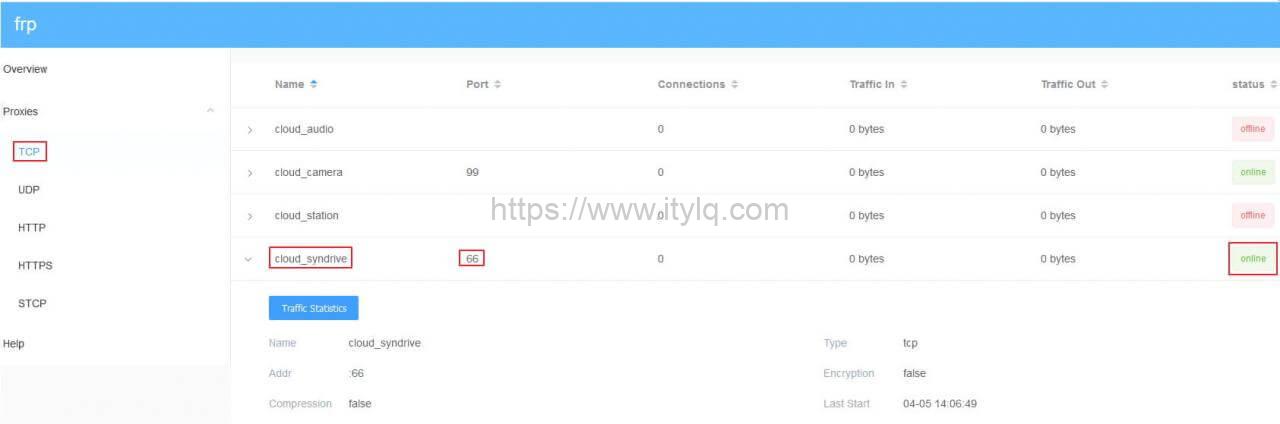
- Release port 66 on the kkcdn.cn server, and then use the frp dashboard to see that the TCP type port mapping has been established:
- Verification: Enter "kkcdn.cn:66" in the server bar of the PC desktop software Cloud Station Drive software, and the connection is successful!
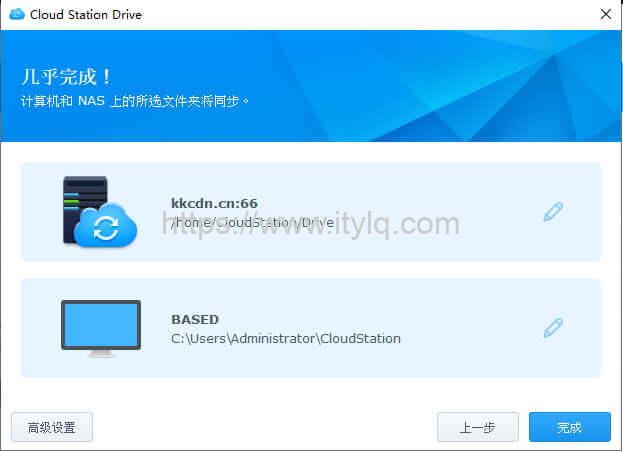
OK, now that Cloud Station Drive is done, the configuration of other Synology desktop programs such as Synology Surveillance Station Client (video surveillance client) is similar. Just do TCP type port mapping, so I won’t list them one by one.
2 Qunhui Android mobile APP connects to the intranet Qunhui NAS application service through FRP
- Install DS audio, DS video, DS file, Drive, DS cam, Moments, etc. on your mobile phone. Open the software interface and see the option of "HTTPS". It is a great surprise. It means that most of the Qunhui Android mobile APPs use HTTP/HTTPS communication, so it is simple. Just fill in the subdomain name + port number that have been configured in the previous "Practice Record (2)" into the server column. The following screenshots are screenshots of logging in to DS video and DS file. Both logins were successful.
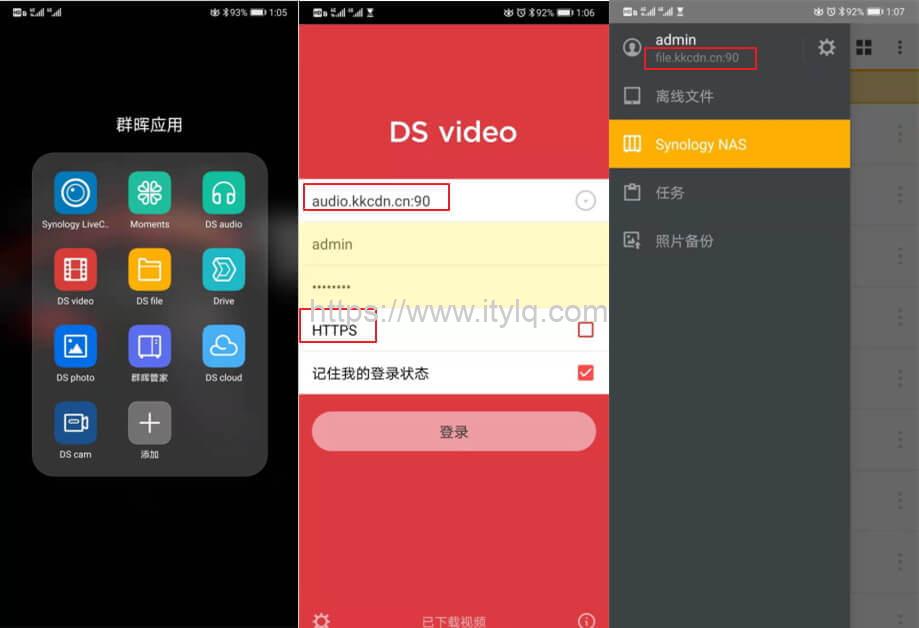
- Open DS cloud and Synology LiveCam (this software is more fun, you can use your phone as a camera, and the captured videos will be stored in the Synology NAS system in real time, so you don’t have to worry about running out of space on your phone~). The interfaces of these two software are relatively "ugly" and there is no "HTTPS" option. Following the routine of Synology desktop applications, these two apps should also directly use TCP/UDP to transmit data. So, try to enter the mapped port (6690->66) corresponding to the TCP port of the application in the address bar, that is, "kkcdn.cn:66", and the DS cloud login is successful.
As I write this, I have a bold guess: These few applications with relatively "ugly" interfaces that directly use TCP/UDP protocol transmission should be applications developed by Qunhui's R&D staff in the early days and follow the oldest desktop software/APP data transmission method. Four-layer protocols like TCP/UDP, although TCP has a three-way handshake and other mechanisms to ensure the reliability of data transmission, more advanced functions, such as flow control, encryption and decryption transmission, etc., are helpless. Just guessing, with the advancement of more projects, the thinking of Qunhui's official R&D staff has gradually matured, and they are finally moving in the right direction of advanced protocols and light applications. I am very relieved, haha~
3 Finally: How to connect Photo Station and DS photo through FRP penetration?
According to the official application port information, the Photo Station service calls HTTP:80/HTTPS:443 port. Obviously, the default web port is also HTTP:80/HTTPS:443, which is outrageous. How can one port be used by multiple applications at the same time? ! What is depressing is that the Qunhui DSM system does not support modifying the Photo Station service port. The method of using HTTP+subdomain name (i.e. photo.kkcdn.cn:90) obviously does not work...
There is no other way. Try using TCP port mapping to map the local TCP:80:
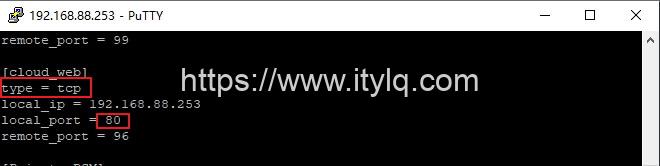
Then enter "kkcdn.cn:96" in the DS photo server bar, and the connection is successful! After thinking about it, I can only guess that it is the program that monitors port 80 in real time on the Qunhui NAS system. It will determine the identifier based on the data received from different terminals, and then forward it to the corresponding application...
Okay, finally, here are the screenshots of accessing Qunhui Photo Station through HTTP web pages and Android clients:
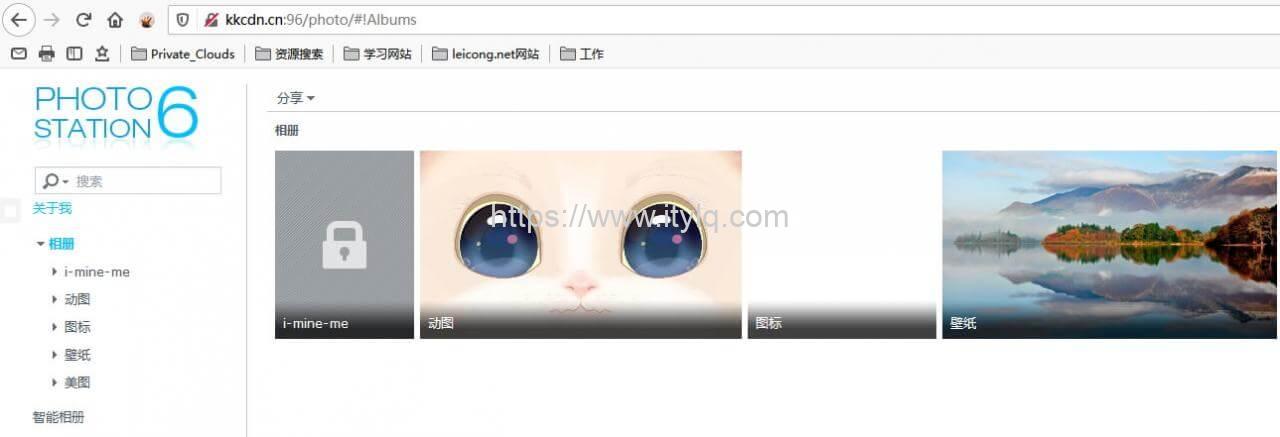
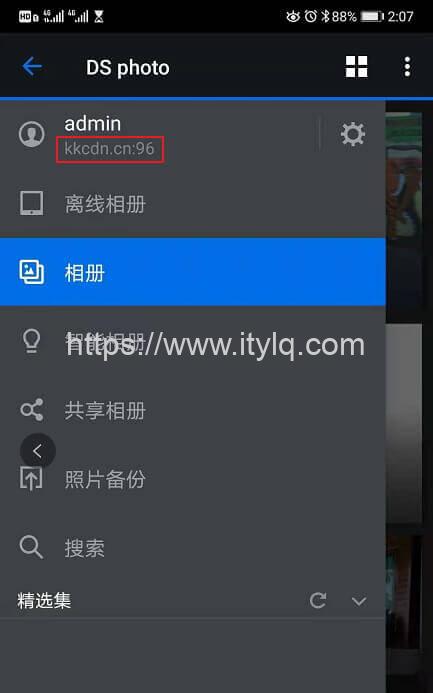
Finally, to summarize: For new versions of applications, such as those that support HTTPS, they are relatively friendly. They only need to perform HTTP-type subdomain mapping to achieve perfect intranet penetration; if there are relatively large restrictions such as Photo Station and Cloud Station Drive that do not allow the service port to be changed, then TCP-type port mapping can be achieved.
This article was moved from WordPress to MkDocs