Website article download button beautification code (supports any network disk link such as Baidu Netdisk, Alibaba Cloud Disk, Tianyi Netdisk, Lanzuo Netdisk, 123 Netdisk, etc.)
Original link: https://www.itylq.com/wordpress-download-button-prettify.html
Release date: 2022-10-23 Migration time: 2026-03-21
The default download button of WordPress is quite ugly. In addition, if there are multiple network disk file sharing links in the article, it will not be easy to distinguish. So how can we beautify the download button quickly and once and for all?
- Find the public css style file of the current website theme in the website background, and then copy the following code to the file:
.i-down-box{
width: 100%;
display: flex;
align-items: center;
justify-content: center;
flex-wrap: wrap;
}
.idown-btn {
letter-spacing: 0.1em;
cursor: pointer;
font-size: 14px;
font-weight: 700;
line-height: 45px;
width: 23%;
max-width: 160px;
text-decoration: none;
text-transform: uppercase;
margin: 5px;
}
.idown-btn:hover {
text-decoration: none;
}
.i-idown-btn {
--uismLinkDisplay: var(--smLinkDisplay, inline-flex);
display: var(--uismLinkDisplay);
color: #000;
border: 2px solid #000;
border-radius: 5px;
position: relative;
transition-duration: 0.4s;
overflow: hidden;
text-align: center;
}
.i-idown-btn::before,
.i-idown-btn span{
margin: 0 auto;
transition-timing-function: cubic-bezier(0.86, 0, 0.07, 1);
transition-duration: 0.4s;
}
.i-idown-btn:hover{
background-color: #000;
}
.i-idown-btn:hover span{
-webkit-transform: translateY(-400%) scale(-0.1,20);
transform: translateY(-400%) scale(-0.1,20);
}
.i-idown-btn::before{
content: attr(data-sm-link-text);
color: #FFF;
position: absolute;
left: 0;
right: 0;
margin: auto;
-webkit-transform: translateY(500%) scale(-0.1,20);
transform: translateY(500%) scale(-0.1,20);
}
.i-idown-btn:hover::before{
letter-spacing: 0.05em;
-webkit-transform: translateY(0) scale(1,1);
transform: translateY(0) scale(1,1);
}
@media screen and (max-width: 1198px){
.idown-btn{
width: 45%;
}
}
- On the article editing page, when you need to insert a file download link, switch to the text/html page, then copy the following code and paste it into the appropriate location:
<div class="i-down-box">
<!--In actual use, remember to replace the # in the a tag below with the download link of the corresponding network disk file-->
<a href="#" class="idown-btn i-idown-btn" data-sm-link-text="Click to download" target="_blank"><span>Lanzuo Netdisk</span></a>
<a href="#" class="idown-btn i-idown-btn" data-sm-link-text="Click to download" target="_blank"><span>Tianyi Netdisk</span></a>
<a href="#" class="idown-btn i-idown-btn" data-sm-link-text="Click to download" target="_blank"><span>Baidu Cloud Disk</span></a>
<a href="#" class="idown-btn i-idown-btn" data-sm-link-text="Click to download" target="_blank"><span>123 network disk</span></a>
</div>
- Download button effect:
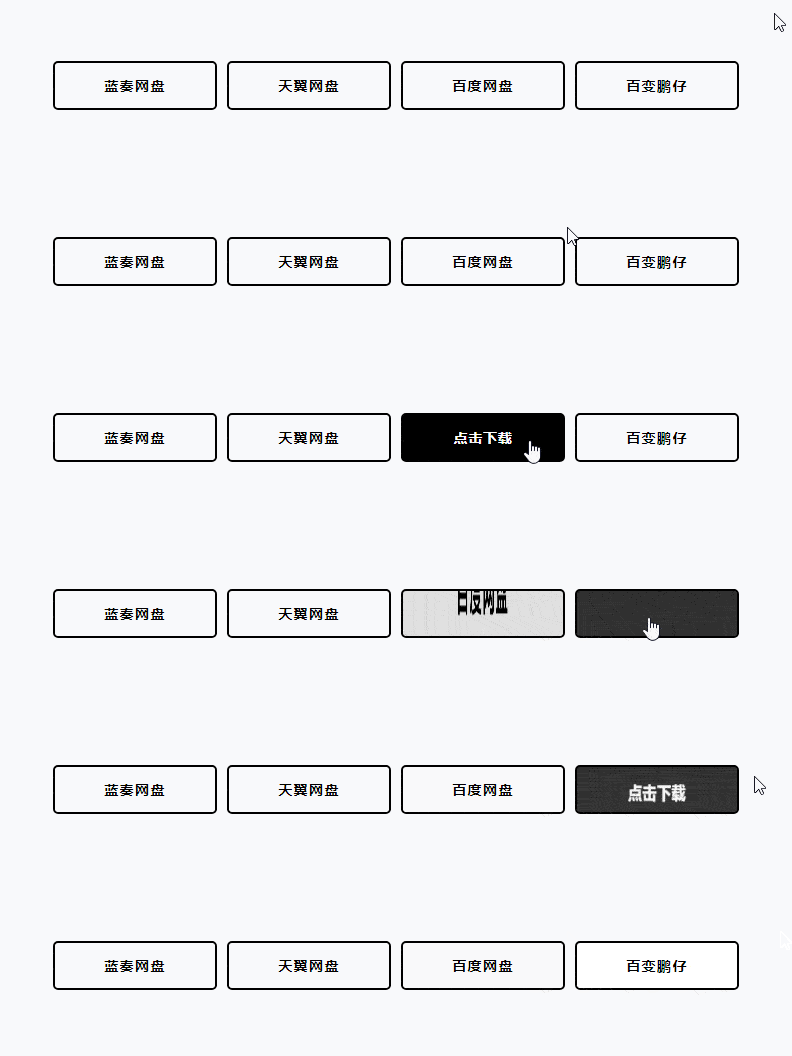
When using it, if you need to share the file sharing link of any network disk, just modify the name of the tag. Of course, if there are more network disk links, just copy a few more lines of tag code.
Note: The class names in