Practice of deploying SSH server on Windows system platform
Original link: https://www.itylq.com/windows-platform-ssh-server.html
Release date: 2022-09-17 Migration time: 2026-03-21
During the company's recent security inspection, all ports on the server that should be blocked and those that should not be blocked were closed, not to mention glaring remote tools such as Sunflower and Anydesk. I tried remote mstsc, but it couldn't connect. Even port 3389 was closed, which is really crazy! The internal control is very satisfied with this result, and the remote server needs to be kicked often without tears...
I scanned it again with a port scanning tool. Fortunately, the ports for other commonly used applications are still open, and SSH is up and running. SSH server software suitable for Windows platform is really hard to find, and I miss the Linux system a bit. After searching hard, I finally found OpenSSH for Windows platform on github, the portal --> Github.
Operating steps:
- Unzip "OpenSSH-Win64.zip" to "C:\Program Files\OpenSSH", check the folder security tab, and ensure that the current user has all permissions for the folder. Remember to check this, otherwise strange problems may occur later...

- Open cmd with administrator rights, cd to the OpenSSH folder, and execute the one-click automatic installation script that the developer has written/(ㄒoㄒ)/~~
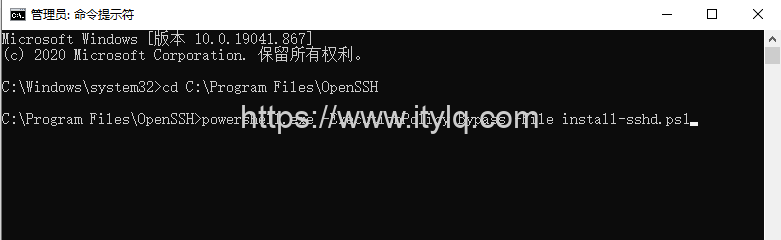
- Start the SSH service and set it to start automatically at boot: continue to execute the following commands in the cmd command line;
- Open port 22 in the inbound direction of the (server) firewall: (Of course, this is done during testing. If port 22 is open by default on your server, just ignore it~)
- SSH client login verification: OpenSSH uses NT authentication by default, that is, enter the (server) Windows system user account password on the SSH client for verification. So, if you need to distribute multiple SSH accounts to users, just create several user accounts on the server.


This article was moved from WordPress to MkDocs