How to skip and permanently block the KB5028166 security patch from the Windows system pop-up window "Agree to cross-border transfer of personal data"
Original link: https://www.itylq.com/sorrow-of-windows-data-privacy.html
Release date: 2023-08-03 Migration time: 2026-03-21
Recently, Microsoft has made a big move. Most win 10 users and a small number of win 11 users who have automatic system updates turned on by default have received a forced pop-up window "Agree to cross-border transfer of personal data" (see Figure 1 below). There is only an consent option, no cancel button, and no rejection. It is very overbearing. How to deal with such hooliganism, how to temporarily skip the mandatory consent window, or even permanently block such official hooligan pop-ups? Please refer to this article for detailed operations.

1 Temporarily pop up the forced pop-up window
(1) Press the keyboard key combination shift+F10 (if it does not pop up, press Win+E to open the resource manager, and then press Win+R to open the small run window). If it does not appear, press it a few more times, then enter taskmgr and press Enter to open the task manager;
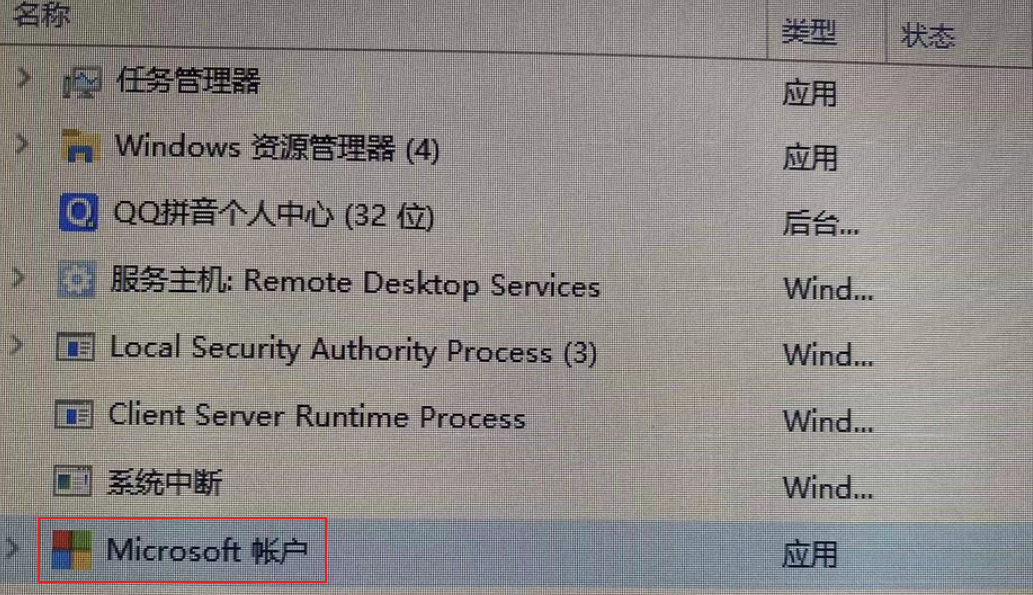
(2) Find the "Microsoft Account" process in the Task Manager, select it and right-click to end the process;
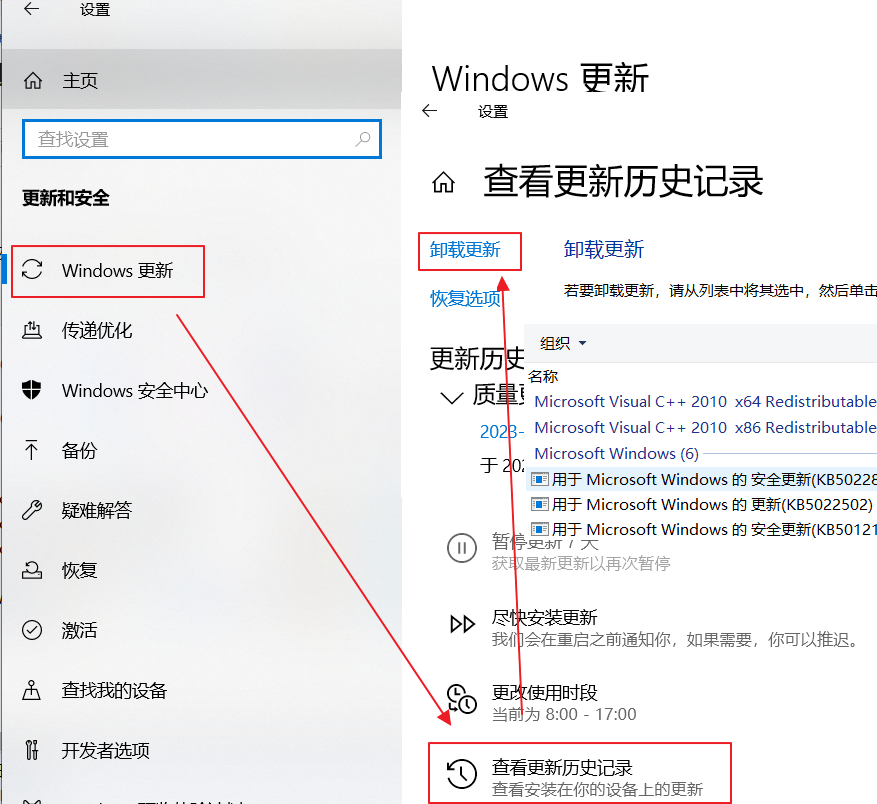
(3) Open "Settings" - "Update and Security" - "Windows Update" - "View Update History" - "Uninstall Updates", find the update information containing the number "KB5028166", and right-click to uninstall.
2 To permanently block the rogue pop-up window
The "Agree to cross-border transfer of personal data" pop-up window appeared with the update of the KB5028166 system security patch package. After uninstalling the patch package according to "1. Temporarily pop up the forced pop-up window (3)", it will be automatically installed back by the system soon. Only by prohibiting the system from installing this update package will this disgusting forced pop-up window not appear again. How to block the installation of Windows update packages with specified numbers? Use magic to defeat magic. The official Windows tool wushowhide.diagcab supports blocking the update package with a specified number.
(1) Download and install wushowhide.diagcab Tool, official download link: download.microsoft.com/…/wushowhide.diagcab | Local download;
(2) Double-click to run, "Next", and wait for the system to automatically complete the patch list scan;
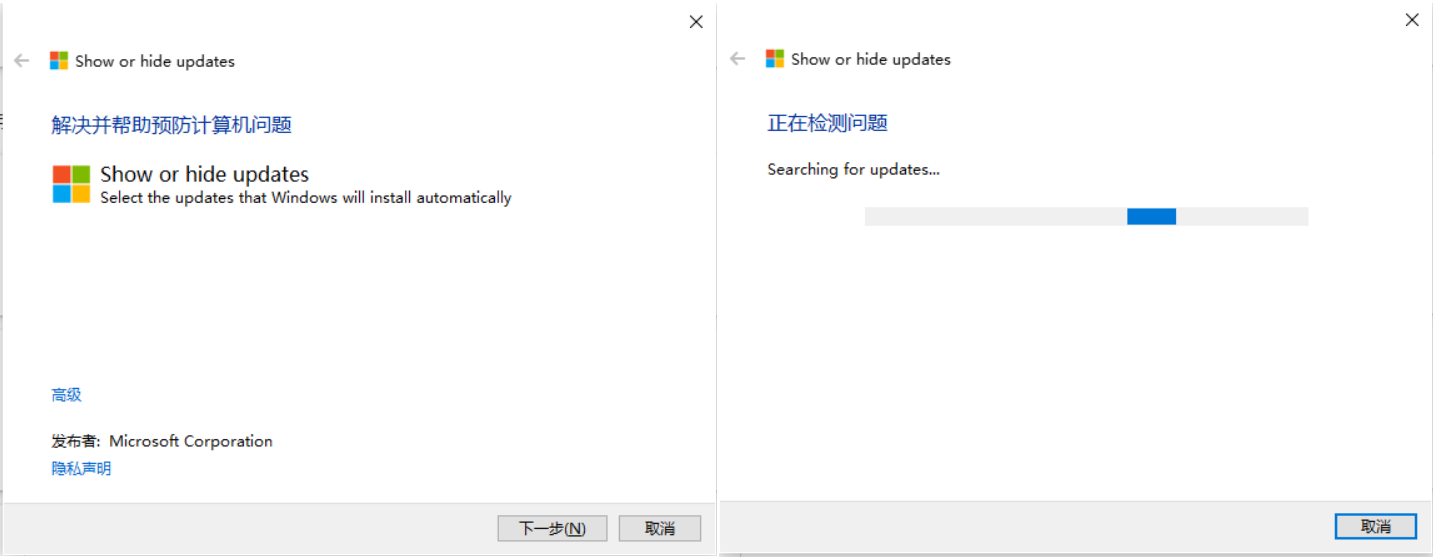
(3) Select "Hide updates" and check the update patch number (KB5028166) to be blocked;

(4) "Next step" until completed.
3 Latest additions
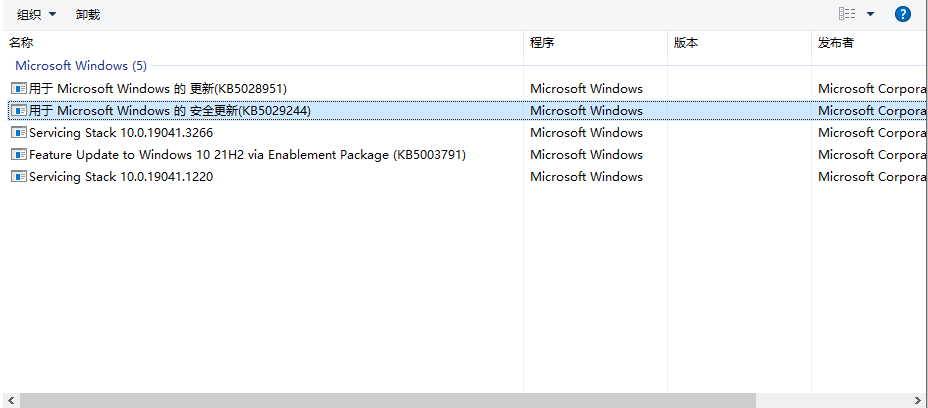
For a small number of users using the Windows 10 LTSC (Long-Term Servicing Channel, long-term support version) version, the system security update patch number corresponding to the "Agree to cross-border transfer of personal data" pop-up window may be KB5029244. The method of exiting the mandatory consent window and blocking the corresponding numbered update patch package is similar to the above. In short, no matter what system version it is, if a forced window of "Agree to cross-border transfer of personal data" appears after your computer is updated, switch to the uninstall update interface, find and uninstall the latest Windows security update.
This article was moved from WordPress to MkDocs