Synology NAS Backup and Recovery for Huawei Mobile Data: What to Do When Prompted “Your Device and NAS Must Be on the Same Local Area Network”
Original Link: https://www.itylq.com/synology-nas-for-cellphone-backup-recovery.html
Publication Date: 2023-02-18 Migration Date: 2026-03-21
Phone storage capacities keep getting bigger, but it feels like there’s never enough… With your phone’s storage nearing capacity, it’s time to back up your data. Huawei phones currently support three methods for backing up and restoring data: “Cloud Backup,” “External Storage,” and “Huawei Phone Assistant.” The “External Storage” option is further divided into “Shared Folders” and “USB Storage.” Using the “Shared Folders” method over a local area network (LAN) allows for seamless integration with Synology NAS.
Note: The “Backup and Restore” option on Huawei phones can be found under ‘Settings’ → “System and Updates.”

So far, so good. However, after selecting the Synology NAS (which I’ve named “Private_Clouds”) and entering my username and password, the Huawei phone displays the message: “Your device and your NAS must be on the same local area network”? ??
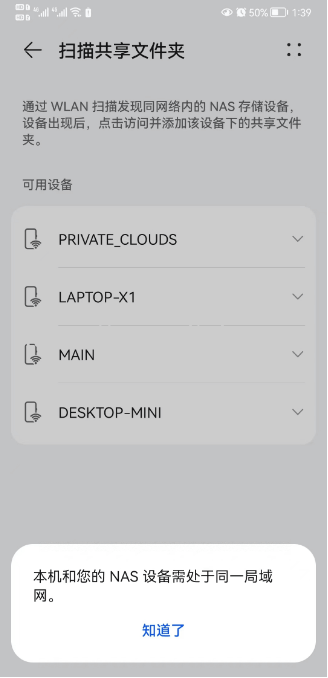
This is a very strange prompt. Clearly, both the phone and the Synology NAS are connected to the same local network—otherwise, the phone wouldn’t be able to detect the NAS device—so why is this message still appearing? It turns out that Synology NAS restricts the SMB protocol versions for enhanced security. By default, it supports SMB version 2 as the minimum and version 3 as the maximum, while Huawei phones use SMB 1.0 by default. The mismatch in SMB versions between the two devices causes this issue.
Solution: Now that we know the cause, it’s easy to fix. Log in to the Synology DSM system via the web interface, navigate to “Control Panel” → “File Services” → “SMB” → “Advanced Settings” → “Minimum SMB Protocol,” select SMB 1, and check the boxes for “Enable SMB 2 Leases” and “Enable SMB Durable Handles” (which will disable cross-protocol file locking) below. Then click OK to save the settings.

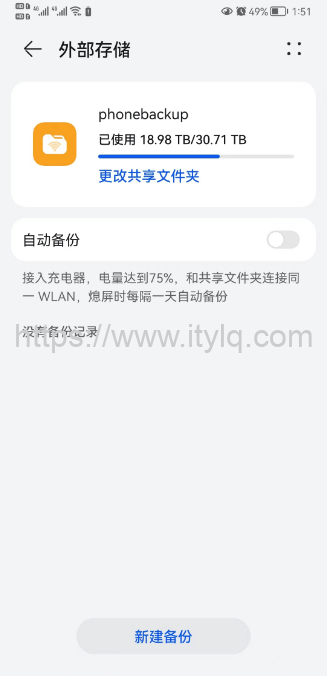
Verification: On the Huawei phone, go back to “Backup and Restore,” connect to the Synology NAS via the shared folder, and you’ll find that backups are now possible.
This article was migrated from WordPress to MkDocs