How to batch import website account passwords into the password manager that comes with Google Chrome for automatic login form filling?
Original link: https://www.itylq.com/google-explorer-import-password.html
Release date: 2023-02-02 Migration time: 2026-03-21

There are so many websites that we browse every day, and the account and password used to log in are all kinds of, which is easy to remember and confused, and inconvenient to use. At present, major browsers such as Google and Firefox have basically launched functions similar to password managers, which will automatically remember the account password corresponding to each website. When we open the website again and try to log in, we can use the automatic form filling function, which improves a lot of efficiency.
Google Chrome expands "Settings" -> "Autofill" -> "Password Manager" and you can see many website account passwords that have been automatically recorded. It also provides an interface for manual input. However, if we exported website account passwords from other browsers, such as Firefox, or from Google Chrome on other computers, how can we import them into Google Chrome in batches?
For security reasons, the batch import function of Google Chrome's password manager is turned off by default. You can turn it on by following the steps below.
-
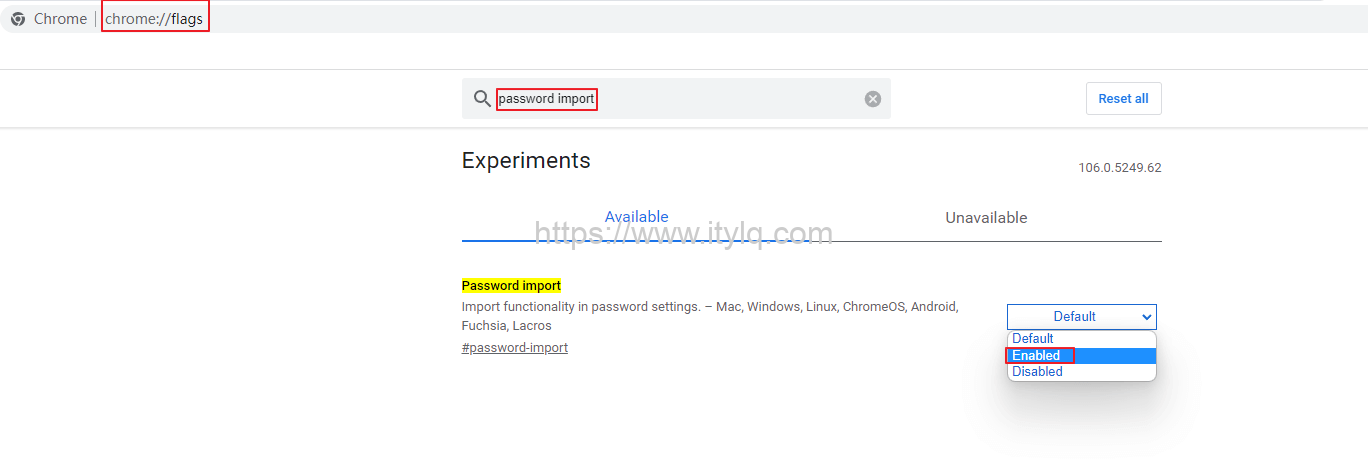
Open Google Chrome, enter "chrome://flags" in the address bar, and press Enter;
-
Enter “password import” in the search box and press Enter;
-
Adjust the default security option of Password import from "Default" to "Enabled" and confirm.
Okay, now go to Google Chrome "Settings" -> "Autofill" -> "Password Manager", click the three dots on the right, and you can see the button to import passwords~
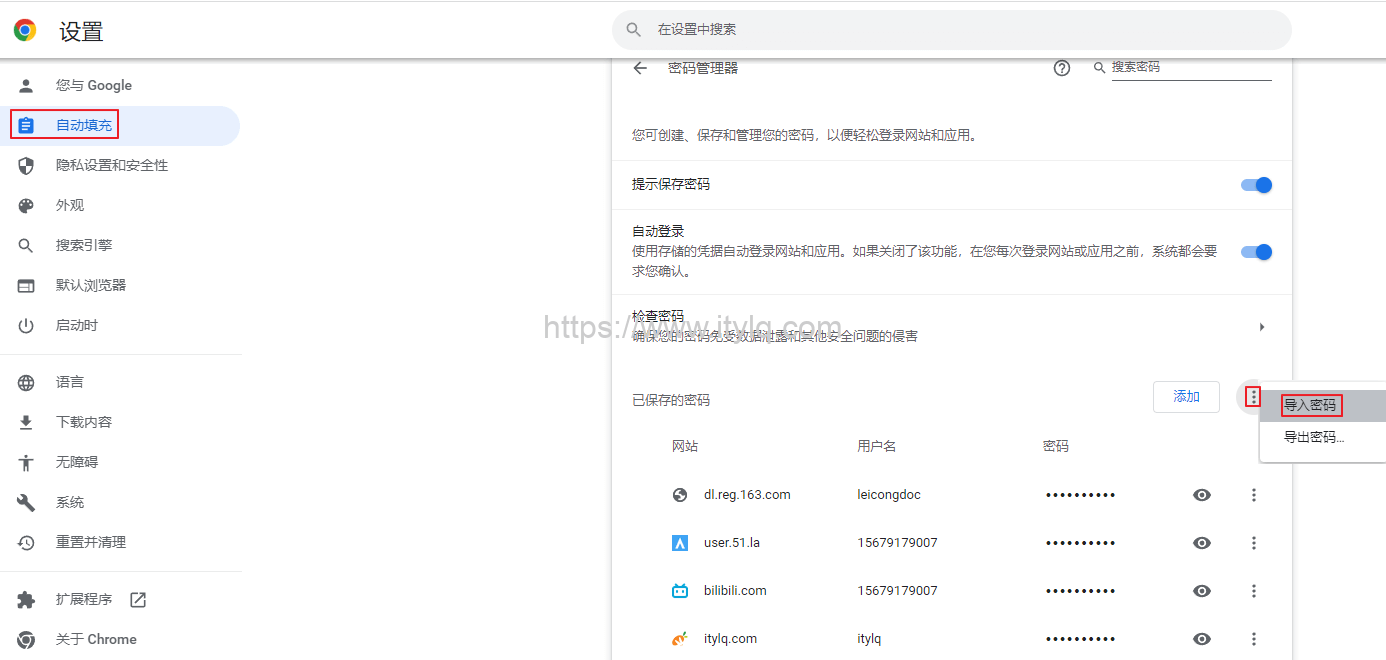
Note: The website account passwords recorded by Google and Firefox are stored in .csv file format.
In addition to the above method, there are two other less commonly used setting methods that can also be used to import website account passwords into Google Chrome in batches.
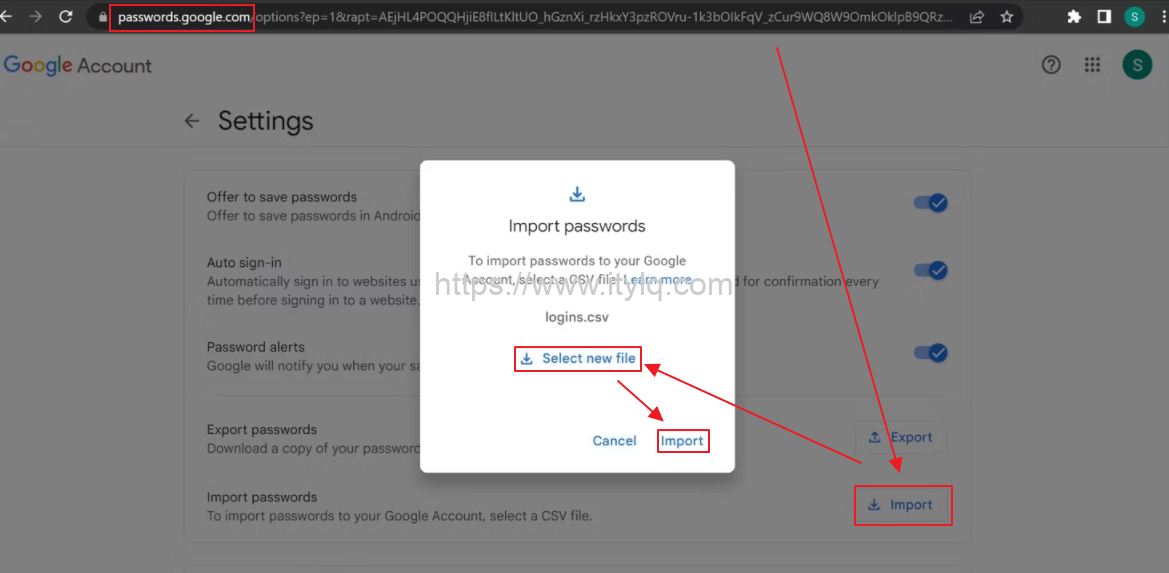
The first method is to log in to your Google account under the premise of being able to surf the Internet scientifically, then enter "passwords.google.com" in the address bar, click the gear icon in the upper right corner to enter the password setting interface, see the picture below:
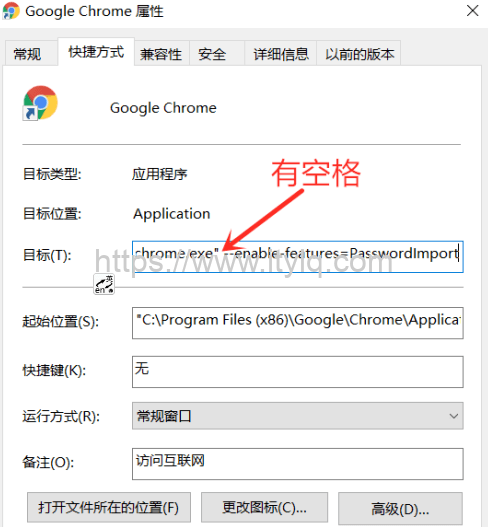
The second method is to find the shortcut icon of Google Chrome on the system desktop, right-click, "Properties", "Target (T)" after the existing string, enter "space" and "--enable-features=passwordimport", confirm and save. Then double-click the shortcut to open Google Chrome, enter the management interface through "Settings" -> "Autofill" -> "Password Manager", click the 3 dots on the right, and find that the "Import Password" button option also appears.
Afterword:
I have always liked using Firefox browser. In addition to automatically filling in forms, the website account and password managed by Firefox can also be synchronized to the server cloud for multi-end sharing. However... after installing a few more plug-ins or Grease Monkey scripts, the web page loading speed of Firefox browser is much slower than that of Google Chrome, so I had to switch camps...
Because Google Chrome is blocked, mainland China cannot use Google's official cloud synchronization service. Unfortunately, let's just manually import and export in batches, although it is a bit cumbersome.
In addition, some friends may ask me, why not use a third-party plug-in to manage and synchronize website account passwords? The overall network security in the general environment is terrible. Major well-known technology companies such as Microsoft, FB, and Nvidia can be hacked and data stolen. How can I safely hand over my preferences, my privacy, and my data to a mediocre third-party plug-in developer?
This article was moved from WordPress to MkDocs