Practice of setting up socks5 proxy server
Original link: https://www.itylq.com/socks5-application-deployment.html
Release date: 2025-04-29 Migration time: 2026-03-21
1 Preliminary work
This article takes CentOS 7.9 as an example.
Ensure that common CentOS server tool commands are available, such as wget, tar, make, vim, etc.
2 Detailed operations
# 1 Install gcc and dependent libraries
yum install -y gcc openldap-devel pam-devel openssl-devel
# 2 Download the SS5 installation package
wget http://jaist.dl.sourceforge.net/project/ss5/ss5/3.8.9-8/ss5-3.8.9-8.tar.gz
# 3 Unzip the installation package [to the /root directory]
tar -vzx -f ss5-3.8.9-8.tar.gz
# 4 Enter the ss5 directory to compile and install
cd ss5-3.8.9/
./configure
make && make install
# 5 Add executable permissions
chmod a+x /etc/init.d/ss5
# 6 Modify ss5 configuration file
cp /etc/opt/ss5/ss5.conf /etc/opt/ss5/ss5.conf.bak
vim /etc/opt/ss5/ss5.conf
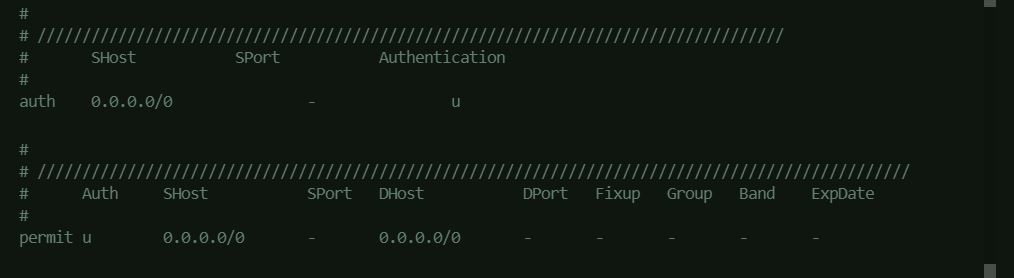
## 6.1 Find the auth configuration item
Remove the comment symbol "#" at the beginning of the line and change the Authentication column from "-" to "u";
## 6.2 Find the permit configuration item
Remove the comment symbol "#" at the beginning of the line and change the auth column from "-" to "u".
## See Figure 1 below.
# 7 Create a dedicated account and password for socks connection
groupadd ss5
useradd -g ss5 USERNAME -s /sbin/nologin
passwdUSERNAME
Enter the password on the interactive interface and confirm it
# 8 ss5 add agent account password
vim /etc/opt/ss5/ss5.passwd
Enter "Account Password", save and exit.
# *9 Modify the service port (default port is 1080)
vim /etc/sysconfig/ss5
Find the SS5_OPTS=" -u root" line, remove the comment symbol "#" at the beginning of the line, and modify it to
SS5_OPTS=" -u root -b 0.0.0.0:new port number"
# *10 The system enables the IP forwarding function
cat /etc/sysctl.conf
Check whether there is a configuration item net.ipv4.ip_forward=1. If the value is the default 0 or the item does not exist,
vim /etc/sysctl.conf can be modified or added manually
# 11 Set ss5 to start automatically when booting
chmod a+x /etc/rc.d/init.d/ss5
chkconfig --add ss5
chkconfig --level 345 ss5 on
# 12 Start ss5 service
systemctl start ss5
or
service ss5 start
# 13 The client initiates a socks5 connection test
See screenshot 2.
#14 Finishing touches
Delete the compressed package, decompressed directory and files, omitted.
3 Some screenshots during the process

This article was moved from WordPress to MkDocs